
ActionPock manual
Everything in ActionPock, explained field by field: what each action type does, what every setting in its editor means, and how the Launcher, workflows, and licensing fit together. New here? Start with your first action below — it takes a minute.
The three essentials
- Action: a saved task, such as pasting a reply, opening a folder, or showing a memo.
- Group: a way to organize related actions and workflows. A group does not run its contents.
- Workflow: a series of actions that run in order when you start it.
Use the Launcher for quick access and Action Manager to create and organize your collection. New here? Download the free 30-day trial — it starts with a sample Examples group you can explore.
Create your first action
Try saving a short reply you use often:
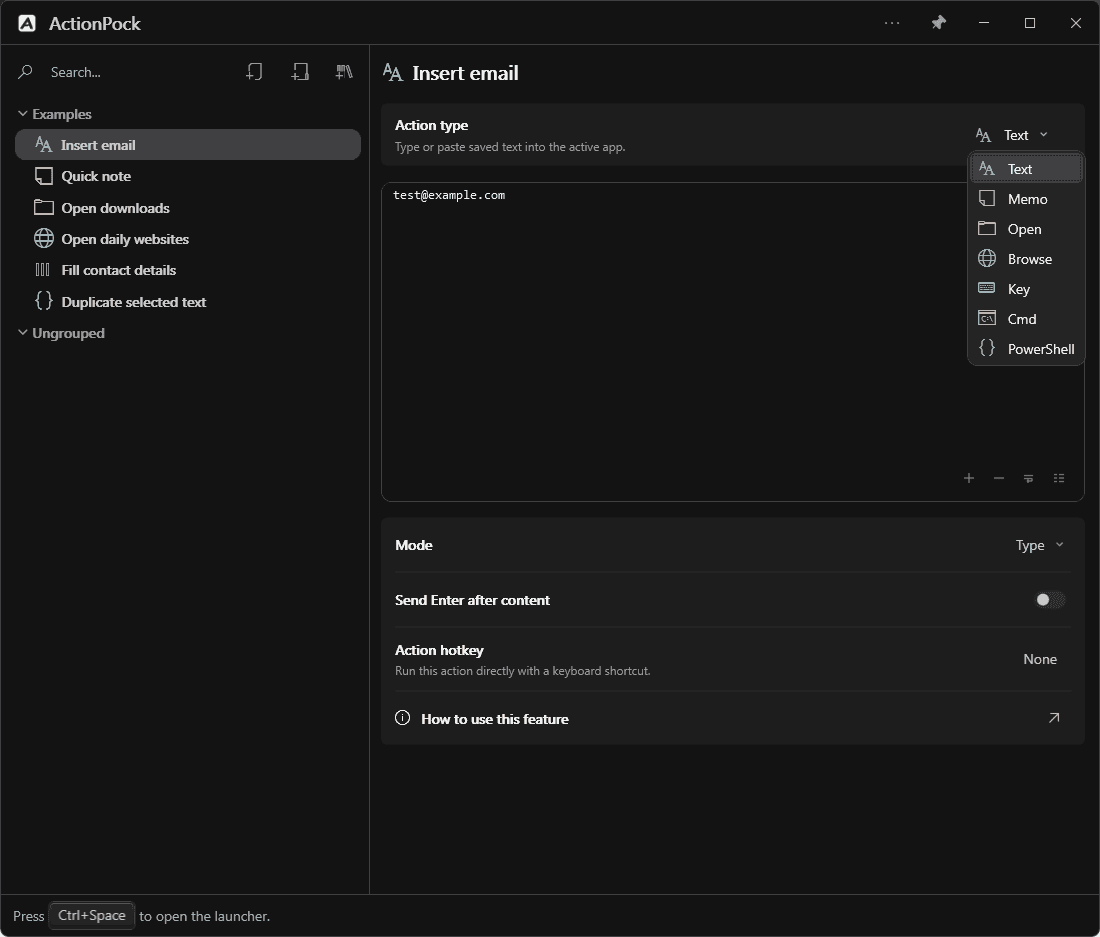
- Right-click the ActionPock icon in the Windows system tray and choose Open Action Manager.
- Choose New Action and give it a recognizable name, such as “Quick thank-you”.
- Set Action type to Text.
- Enter your reply and choose Paste in the Mode row below the editor.
- Leave Send Enter after content off if you want to review the reply before sending it.
- Changes save automatically, or press Ctrl+S to save immediately.
- Switch to the app where you want the reply and click its text field.
- Press Ctrl+Space, search for your action, and press Enter.
Ctrl+Space is the default Launcher shortcut. You can choose a different one in Settings.
The Launcher: find and run what you need
The Launcher is the small search window that appears over whatever app you are using. Open it, start typing, and run a saved action without switching away from your work.
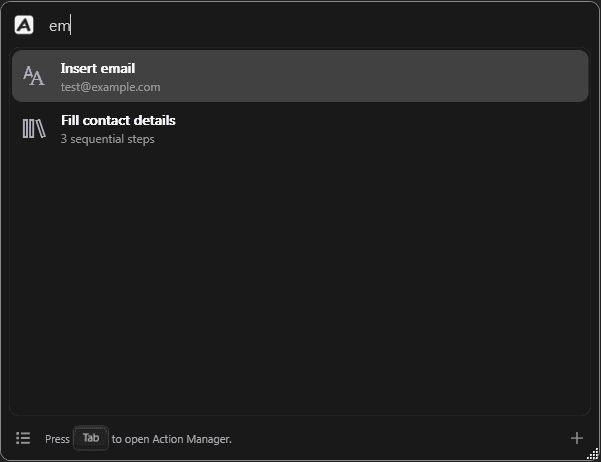
- Search matches action names first — an action whose name contains what you typed ranks above one that only matches in its content or in a workflow's steps. Groups and hotkeys are searched too.
- Use ↑ and ↓ to move through the results.
- Press Enter or double-click a result to run it. If the action has fillable parameters, the Launcher asks for each value before it runs (or press Tab on a parameterized result to start filling them).
- Press Esc to close the Launcher without running anything.
- Open Action Manager from the footer control in the Launcher (or from the system tray), not with Tab.
When an action needs parameters, the Launcher switches into a short prompt flow: chips for values you already entered, a live preview of the result, and a badge for how many prompts remain. Enter or Tab advances to the next value; Shift+Enter inserts a newline in the current field; Esc steps back or cancels. See Parameters & date/time.
Screenshot to come
launcher-params.png
For something you use especially often, assign an Action hotkey (see the field below). That shortcut runs the action directly while ActionPock is running, without opening the Launcher first — unless the action needs parameters, in which case the Launcher opens on the prompt flow. For text and keyboard actions, start from the app or field you want to use, and avoid switching apps while automated typing or key presses are in progress.
Action Manager: keep your collection organized
Action Manager is where you create and arrange everything. The list on the left holds your groups, actions, and workflows; select an item to work with it on the right.
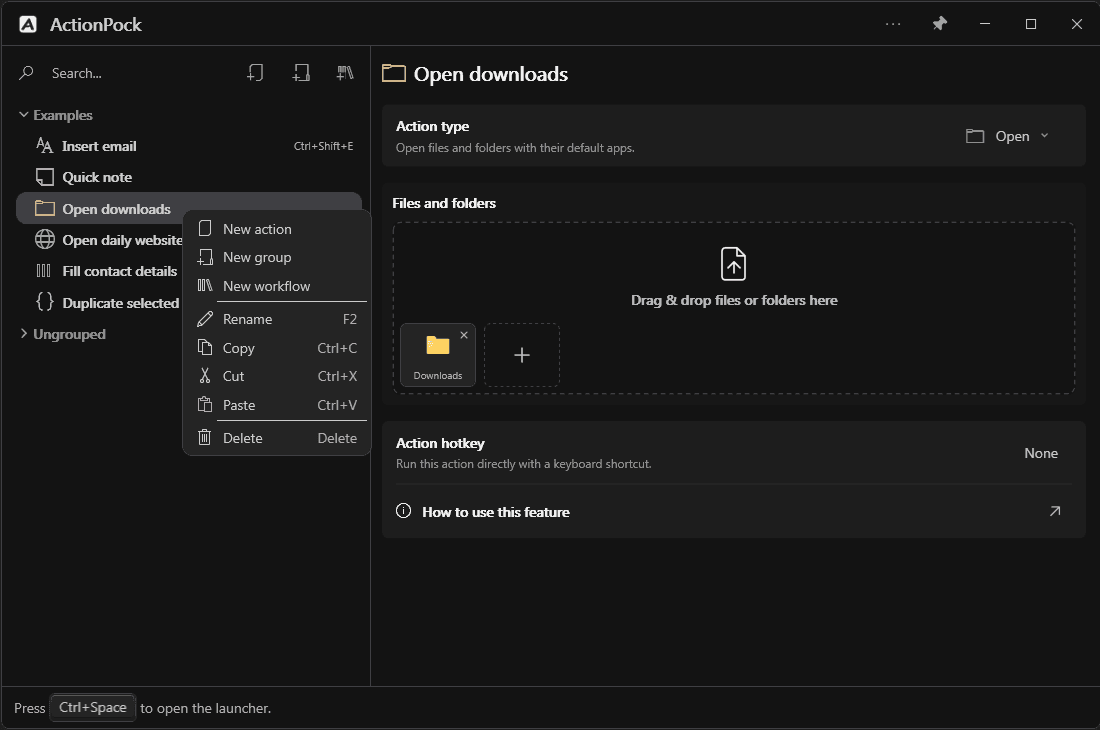
- Create groups such as Work, Personal, or Writing.
- Items without a group appear under Ungrouped.
- Use the search field at the top of the list to narrow it down. Title matches rank first, as in the Launcher.
- Drag items to reorder them or move them between groups.
- Right-click an item to Rename, Copy, Cut, Paste, Duplicate, or Delete it.
- Use Ctrl+click to select several individual items, or Shift+click to select a range.
- To rename an action, double-click its name in the list or press F2.
- Deleting a group keeps its actions and workflows under Ungrouped. Deleting a workflow also deletes the steps inside it.
Choose the right action type
Every action has a type, and the type decides what the editor shows. The next sections explain each type field by field. First, the parts they all share.
Fields every action shares
| Field | What it does | Notes & tips |
|---|---|---|
| Title | The name you search for in the Launcher and see in the Action Manager tree. | Keep it short and recognizable — you will type part of it to find the action. Rename in the tree (double-click or F2). |
| Action type | Chooses what this action does: Text, Open, Browse, Key, Memo, PowerShell, or CMD. Changing it changes the editor below. | The line under the field describes the selected type. You can change the type of an existing action; fields that do not apply are kept out of the way. |
| Action hotkey | A keyboard shortcut that runs this action directly, without opening the Launcher. | Click the field and press the combination you want. Leave it empty (None) if you prefer to run the action from the Launcher. Avoid combinations your other apps already use. |
| Delay before next step (ms) | How long a workflow waits after this step before starting the next one. Only shown when the action is a step inside a workflow. | Default is short. Give steps that open apps or websites more time — opening something does not mean it is ready for typing yet. |
| How to use this feature | Opens this manual at the section for the feature you are editing. | It opens in your browser and never runs the action. |
Edits save automatically as you work; Ctrl+S saves immediately. If something is missing or invalid, ActionPock shows a message (for example, a Key action without a key) instead of saving a broken action.
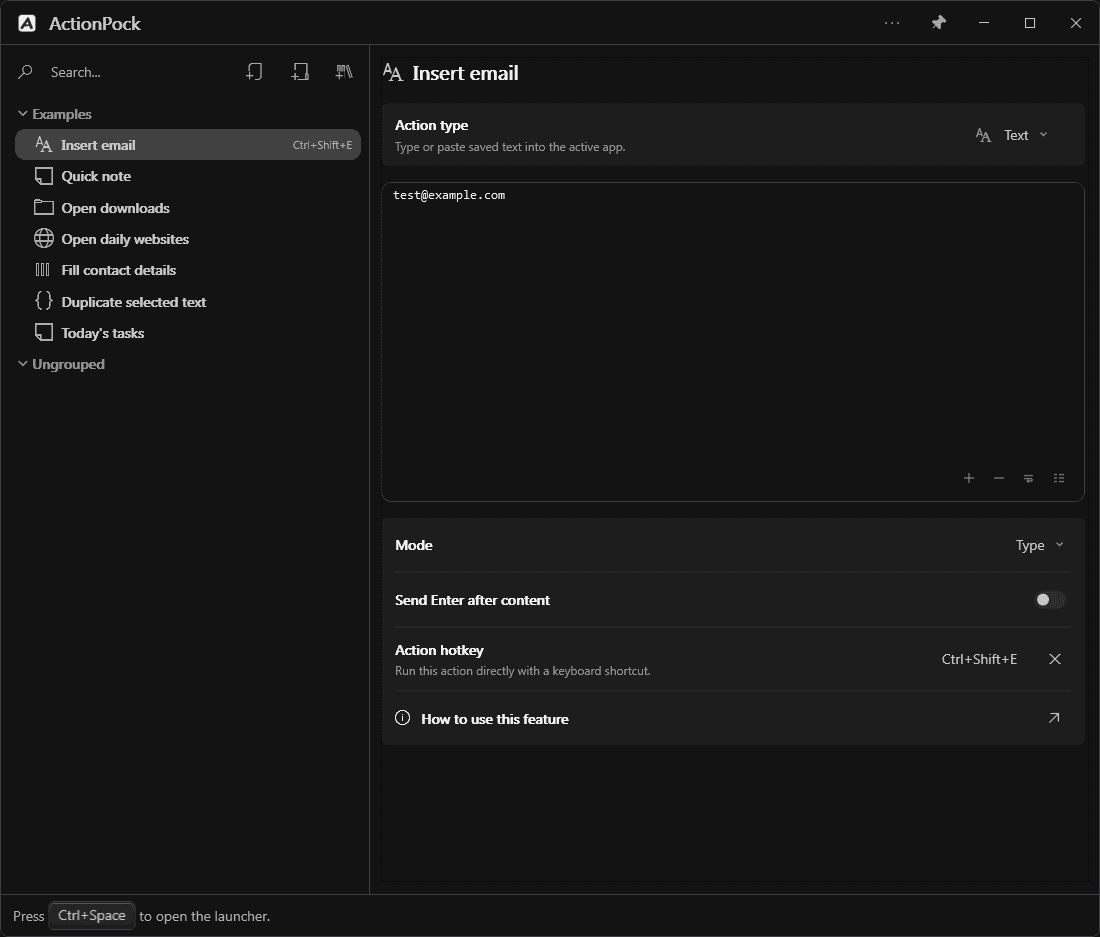
Text — reuse words you type often
Save replies, signatures, instructions, or other reusable text, then insert it wherever you are typing. Use parameters when a blank should be filled at run time, or a date/time format when you want today's stamp in the snippet.
| Field | What it does | Notes & tips |
|---|---|---|
| Content | The text the action inserts. It can be several lines and may include {{…}} placeholders. | Write it exactly as you want it to appear. See Parameters & date/time for blanks and formats. The calendar button on the editor inserts a date/time format token. |
| Mode: Type | Types the content as keystrokes into the active app. | Works almost everywhere, but long text takes a moment and you should not switch apps while it types. |
| Mode: Paste | Inserts the content using the clipboard, all at once. | Fastest for long text. ActionPock leaves the pasted text on the clipboard afterward. |
| Send Enter after content | Presses Enter right after the content is inserted. | Careful: in a chat or form, Enter may send or submit what you entered. Leave it off when you want to review first. |
Example: a “Quick thank-you” reply you paste into any email or chat, ready to send after a quick read — or a greeting that asks for a name and inserts today's date.
Parameters & date/time
Placeholders in double braces let an action ask for values when it runs, or insert a formatted date and time. They work in Text, Cmd, PowerShell, and Browse URLs. Workflows collect every step's parameters up front before the first step runs. Actions that need a fill show a tinted name in the Launcher and Action Manager lists.
| Field | What it does | Notes & tips |
|---|---|---|
| {{Name}} | Prompts in the Launcher for a value labeled Name. | Each occurrence is asked separately, even if two placeholders share the same name. |
| {{Name:default}} | Same prompt, pre-filled with the default after the colon. | Whitespace after the colon is kept exactly as you wrote it. You can edit or clear the value before continuing. |
| {{}} | An empty placeholder gets a numbered label (#1, #2, …) in the prompt. | Use when you do not need a readable name. |
| {{ name : [format] }} | A datetime parameter: the default after the name colon contains at least one [format] token. | The Launcher still prompts, but the default is the live formatted value (for example today’s date), not the raw [yyyy.MM.dd] pattern. Accept it or edit it. Brackets belong in the default only — {{[HH:mm]}} is a normal parameter, not datetime. |
| {{selectedText}} | Filled from the text you had selected when the action ran (PowerShell scripts). | Never prompted. Empty if nothing usable was selected. See PowerShell. |
On a Text action, the calendar toolbar button opens the Date/time format dialog. Pick format chips (year, month, day, time, separators, and more), watch the live preview, then OK to insert a [format] token at the caret — or replace an existing format when the caret is already inside one. Separator chips insert tightly (no extra spaces). In the editor, parameter braces are highlighted; datetime [format] spans use a distinct accent color.
Screenshot to come
datetime-format.png
Examples: {{Name:Alex}} prefills “Alex”; {{Current date: [yyyy-MM-dd HH:mm]}} prefills a rendered timestamp you can tweak before insert.
Open — reach your files and folders
Open the files and folders you use together, each in its default app, with one run.
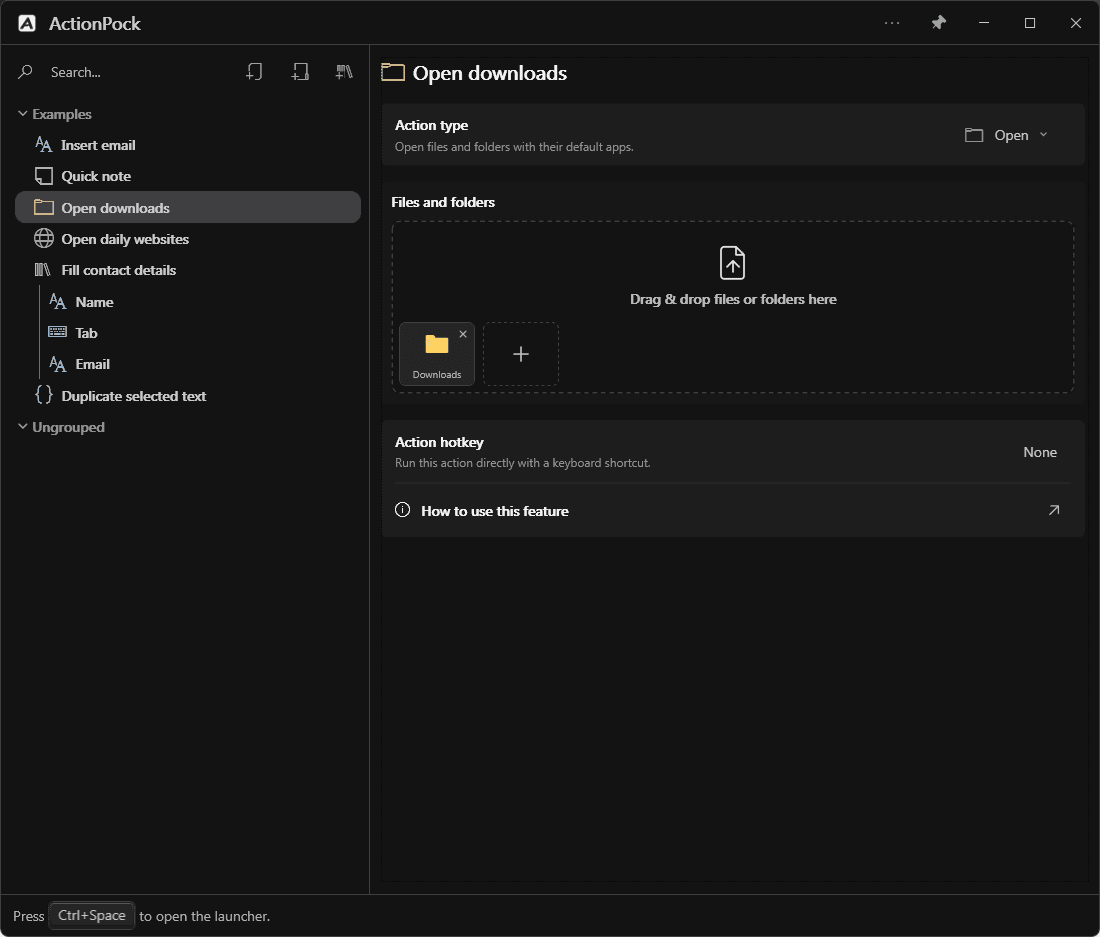
| Field | What it does | Notes & tips |
|---|---|---|
| Files and folders | The tiles list everything this action opens. Each tile is one file or folder. | Click + to add, drag & drop files or folders straight onto the list, and use the × on a tile to remove it. |
Example: a project's working folder plus its reference documents, opened together at the start of the day.
Browse — open your usual websites
Open one or more websites together, each in the browser you choose for it. URLs can include parameters (including date/time defaults) when part of the address should be filled at run time.
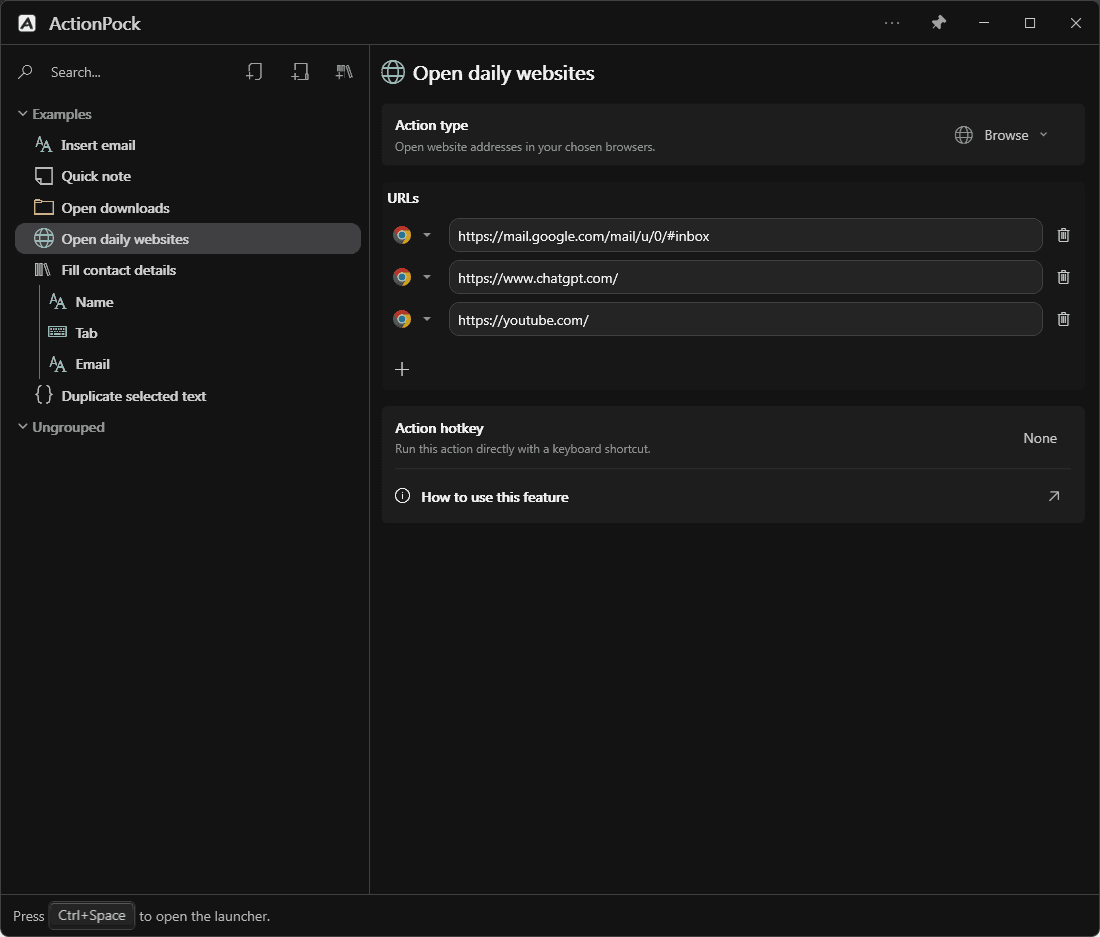
| Field | What it does | Notes & tips |
|---|---|---|
| URL | One website address per row. Running the action opens every row. | Enter website addresses (like https://example.com), not search phrases. {{…}} placeholders are filled before the address opens. |
| Browser (per row) | The browser that opens this particular address. | Each row can use a different browser — for example, work sites in one browser and personal sites in another. |
| Add / delete row | The + button adds another address; the delete button removes a row. | Rows open in order, top to bottom. |
Example: your calendar, task board, and team dashboard, opened with one search every morning.
Key — send a key or shortcut
Send one key press — optionally with modifiers — to the app that is active when the action runs.
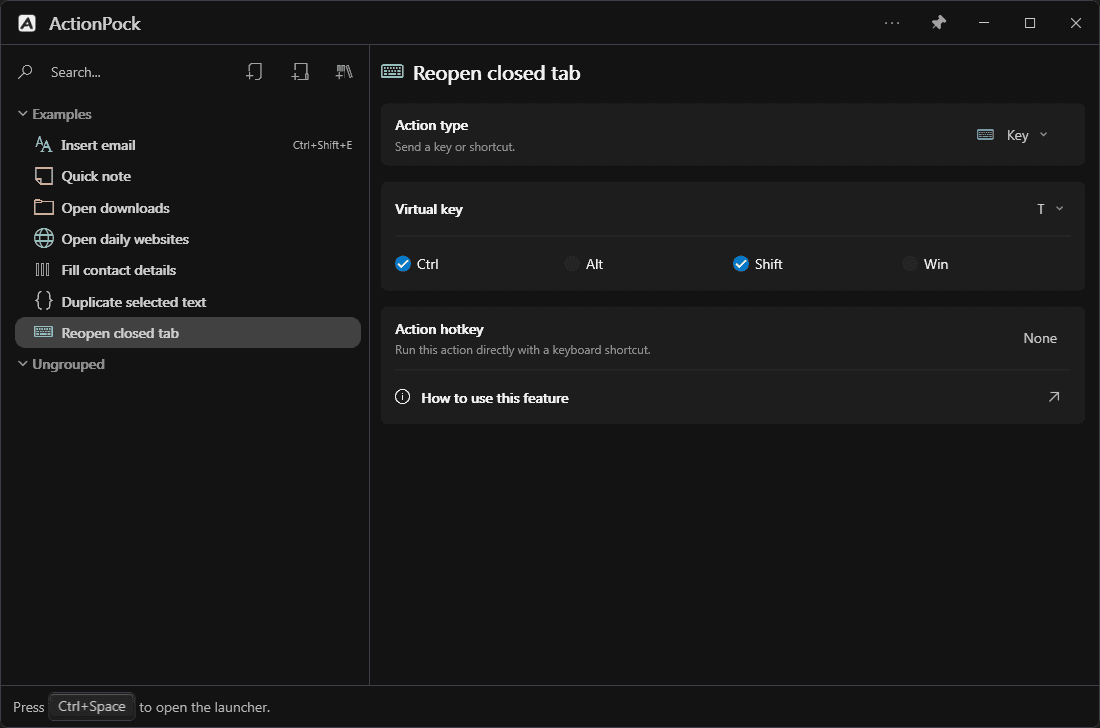
| Field | What it does | Notes & tips |
|---|---|---|
| Virtual key | The key to send. The list uses familiar names — letters, numbers, punctuation, F1–F12, navigation keys, modifiers, and the number pad — never numeric codes. | A key must be selected before the action can be saved; without one, ActionPock shows “Select a valid virtual key.” |
| Modifiers (Ctrl / Alt / Shift / Win) | Modifier keys held together with the virtual key, turning it into a shortcut. | For example, Ctrl + Shift + T reopens a closed browser tab in many browsers. |
A Key action sends exactly one press. Need the same key several times in a row? Add one Key step per press in a workflow and use each step's Delay before next step as the pause between presses.
Memo — keep a note nearby
Show saved text in its own floating Memo window — a checklist, reference note, or reminder you want visible without typing it into another app.
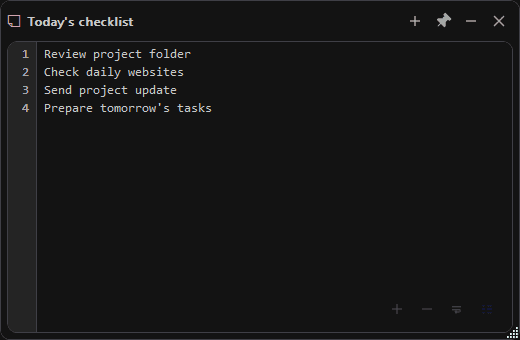
| Field | What it does | Notes & tips |
|---|---|---|
| Content | The note text, edited here in Action Manager and in the Memo window itself — both edit the same note. | Memo changes save automatically after a short typing pause (about half a second); Ctrl+S saves immediately, and closing the memo saves any pending edits. |
| Pin (Memo window title bar) | Toggles Always on top for that memo only, so it floats above other windows. | New memos start pinned. Changing it does not affect Action Manager or other memos. Minimize hides the memo to the taskbar; it stays open and keeps saving. |
| Search (Memo window) | Finds text within the memo. | Press Ctrl+F in the Memo window. The editor also keeps text zoom, word wrapping, and line numbers available. |
Example: a “Today's checklist” memo pinned beside your work, ticked off as you go.
PowerShell — run a trusted script
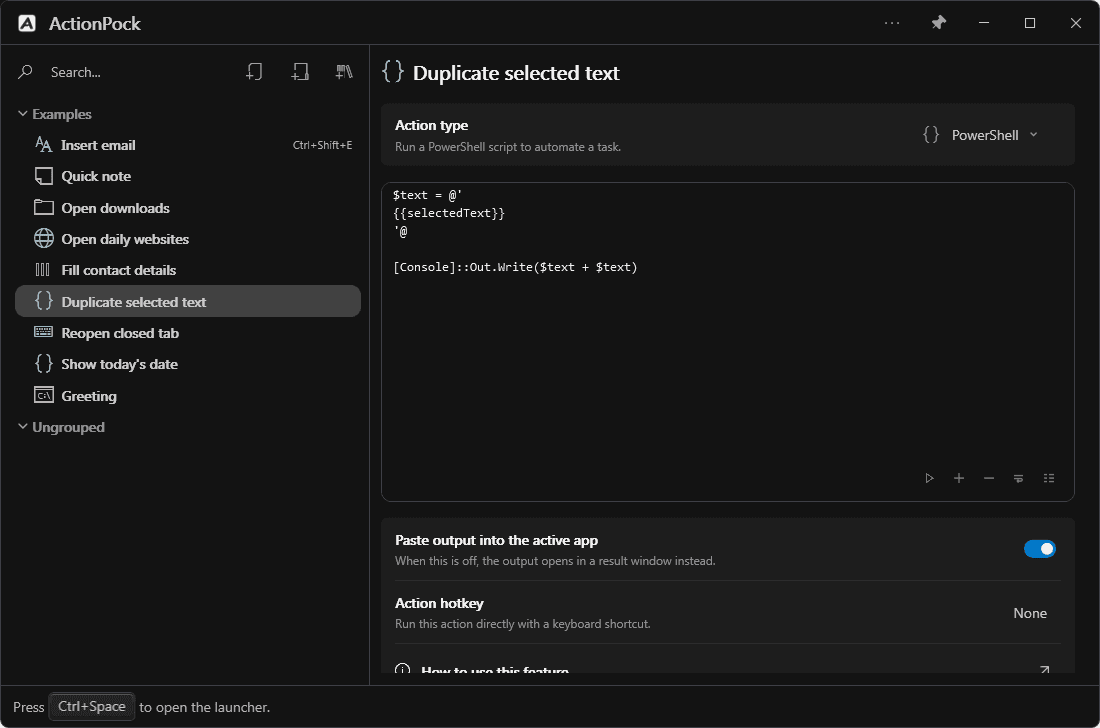
Save a PowerShell script as an action so it is one search away. This is an advanced type — you do not need it to use the everyday actions.
| Field | What it does | Notes & tips |
|---|---|---|
| Script | The PowerShell script the action runs. | The play (Run) button in the editor runs it now as a preview. Only run scripts you understand and trust — they can change files on your computer. |
| Paste output into the active app | On: the script output is pasted where you are working. Off: the output opens in a separate result window instead. | In the result window, large output is shown in pages and partial output is marked. If pasting fails, the output stays available in the result window. |
| {{selectedText}} | Inside a script, this placeholder is replaced with the text you had selected when the action ran (empty if nothing usable is selected). | PowerShell only — CMD does not substitute it. The sample “Duplicate selected text” action shows it in use. Other {{…}} parameters work like Text — see Parameters & date/time. |
The first time each script runs, ActionPock asks you to approve it — see Script security. Ordinary parameters and date/time placeholders in the script are filled before it runs.
CMD — run a saved command
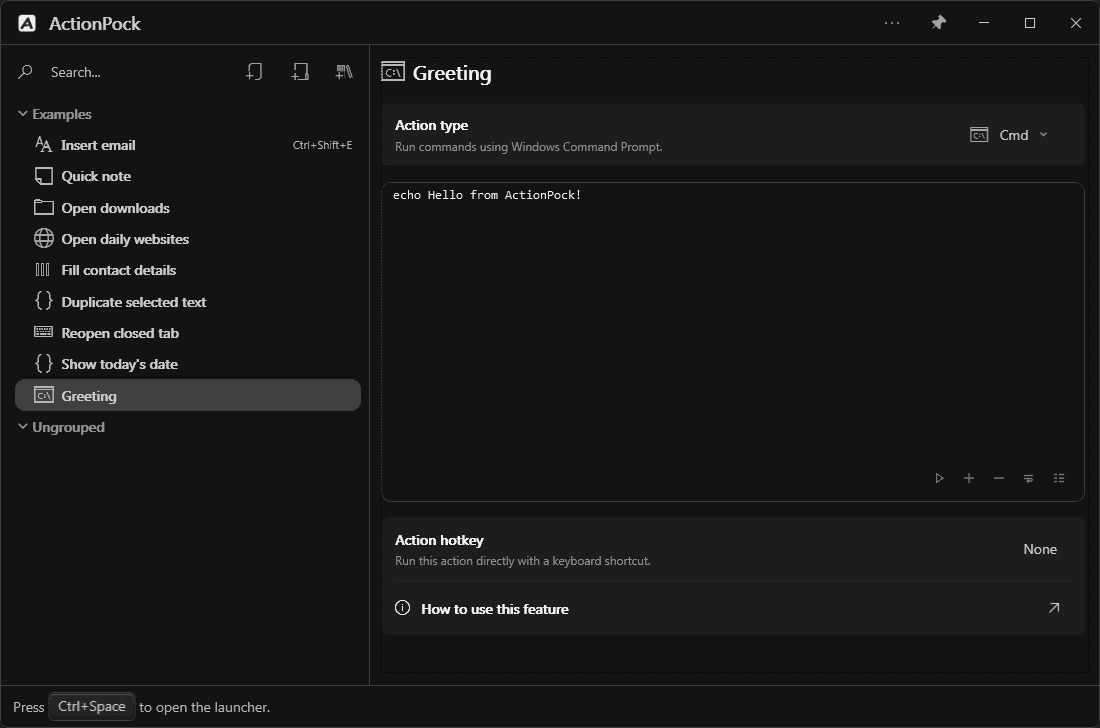
Save Windows Command Prompt commands as an action instead of retyping them. Also an advanced, optional type. Commands can include parameters the same way Text content does.
| Field | What it does | Notes & tips |
|---|---|---|
| Commands | The Command Prompt commands the action runs, one after another. | The play (Run) button in the editor runs them now as a preview. Only run commands you understand and trust. {{…}} placeholders are filled before the commands run. |
Differences from PowerShell: CMD has no Paste-output toggle and does not substitute {{selectedText}}. The first-run approval works the same — see Script security.
Script security: approving CMD and PowerShell
Scripts can change files and settings, so ActionPock asks before it trusts one — once, not every run.
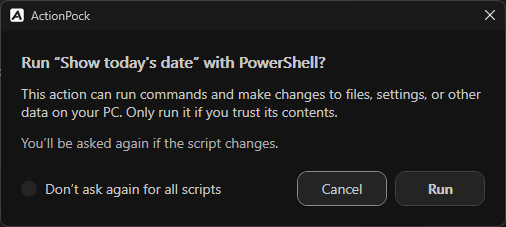
- The first time you run each CMD or PowerShell action, a confirmation names the action and shell. Choose Run to continue or Cancel to stop. Approval is remembered for that action and that exact script — not for all scripts.
- Editing the script, changing its shell type, or (for PowerShell) changing the Paste-output behavior asks again. Copied and imported actions need their own approval. An unsaved script in the editor preview asks every time.
- This applies however the script starts: Launcher, hotkey, the editor's Run button, or a workflow step. A workflow shows one confirmation listing every script that needs approval before any step starts; Run approves them together, Cancel stops the whole workflow.
- To skip confirmations entirely, select Don't ask again for all scripts in the dialog, then Run. Restore the prompts any time under Settings → Security by turning off Trust all scripts. Approvals you gave individually stay valid either way. Windows permissions and company policies still apply.
Workflows: turn a routine into one run
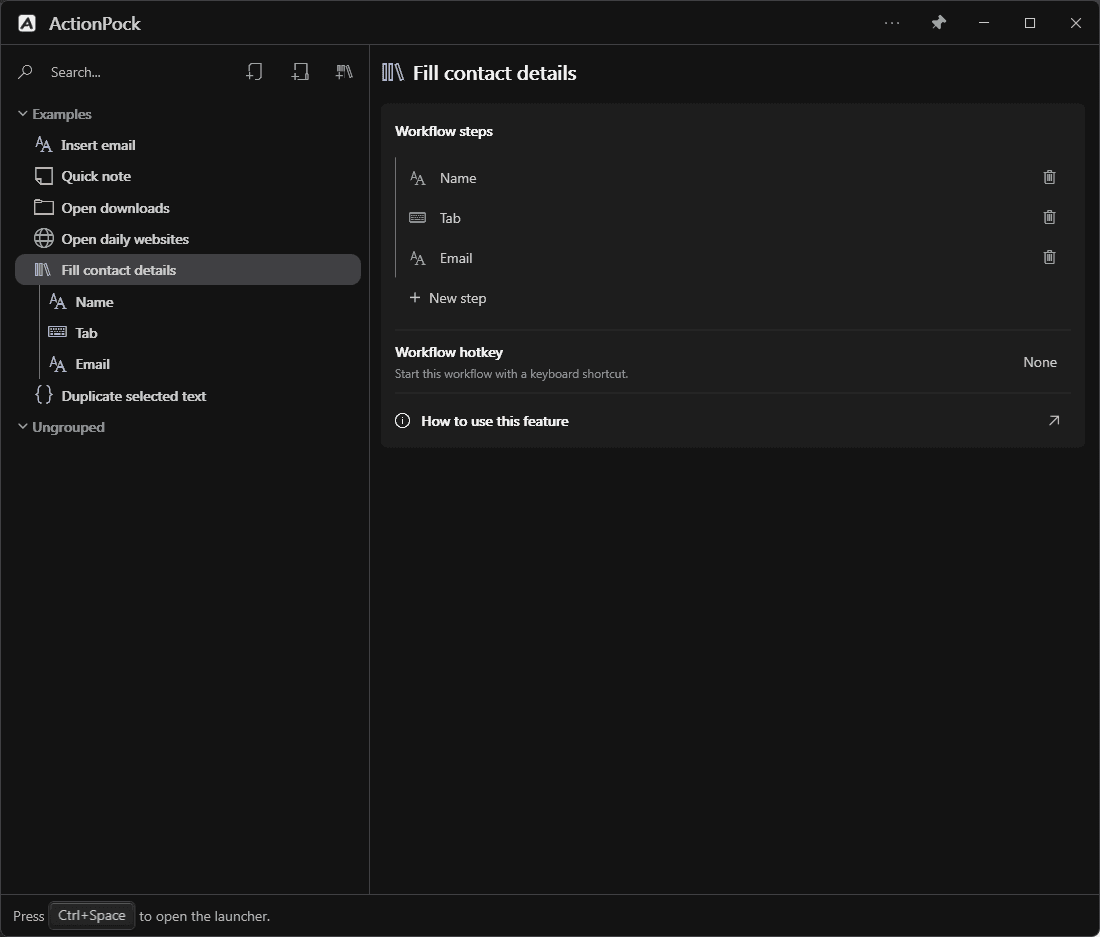
A workflow runs several actions in a saved order — for example, a “Start my day” workflow that opens your work folder, opens your daily websites, and displays a checklist memo. If any step uses parameters, the Launcher asks for every value across all steps before the first step starts.
| Field | What it does | Notes & tips |
|---|---|---|
| Workflow steps | The ordered list of steps that run, top to bottom. Each step is an action of any type, edited with the same editor as a standalone action. | Drag a step to the line between rows to reorder; the order saves immediately. Press Esc while dragging to cancel. Double-click a step (or select it and press Enter) to edit it. |
| + New step | Adds a step at the bottom. The new step gets its own type and fields, like any action. | Also available when the workflow is empty. Groups and other workflows cannot be steps. |
| Delete step (per row) | Removes just that step, after confirmation. The workflow itself stays. | Or select the row and press Delete. |
| Workflow hotkey | A shortcut that starts the whole workflow directly. | Works like an Action hotkey, for the entire sequence. |
| Delay before next step (per step) | How long to wait after a step before the next one starts. | Give steps that open apps or websites enough time before a following typing or Key step — opening something does not mean it is ready for input. |
- Choose New workflow in Action Manager and give it a name.
- Select the workflow and choose the + New step row below its steps.
- Choose the step's action type and fill in its details.
- Add the remaining steps and drag them into order.
- Adjust the delay before the next step where needed.
- Run the workflow from the Launcher or assign it a hotkey.
While a workflow runs, a small spinner stays visible, including during delays; hover it to see the current step. Click it (or press Esc in that window) to cancel: cancellation stops future steps and managed scripts, but does not undo completed steps or close apps they opened. Steps run only as part of their workflow — they do not appear as separate Launcher results.
Settings: make ActionPock comfortable
Open Settings from the app menu in Action Manager's title bar (the app icon or the … menu). Settings and About open inside Action Manager; use the back arrow to return to your action. Changes take effect without restarting.
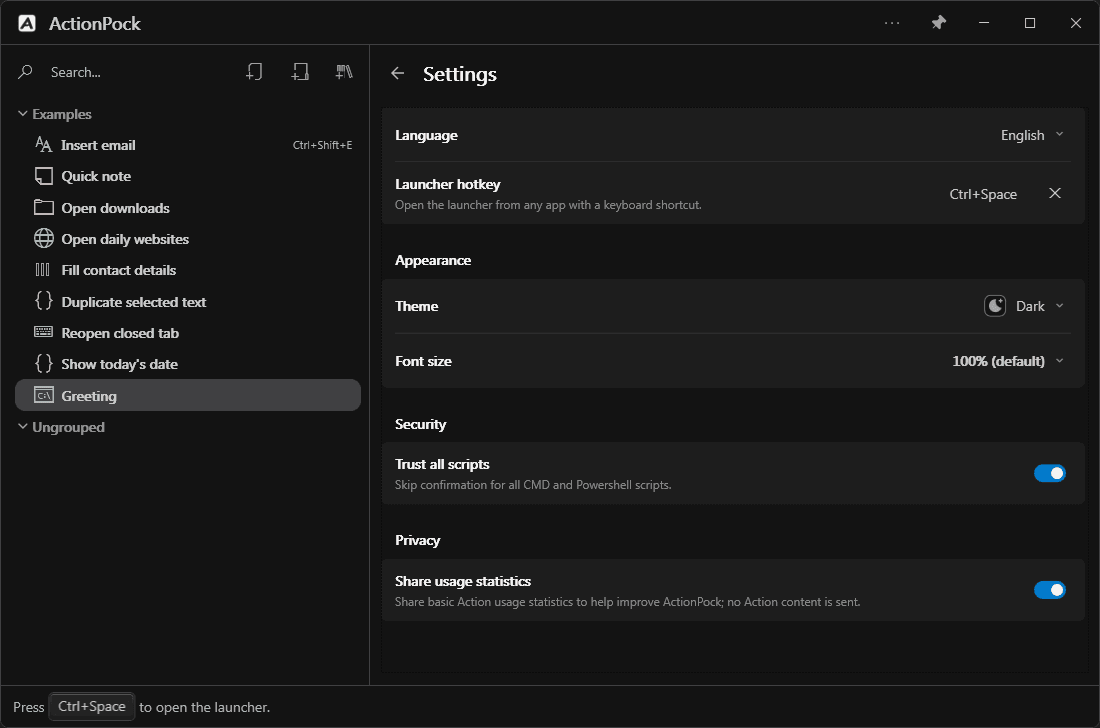
| Field | What it does | Notes & tips |
|---|---|---|
| Language | The interface language. Options are shown in their native names. | 70 options, including regional variants. Switching updates open windows right away; your saved action names stay exactly as you wrote them. |
| Launcher hotkey | The shortcut that opens the Launcher from any app. | Ctrl+Space by default. Click the field and press a new combination if another app already uses it. |
| Theme | The color appearance: Dark, Sunset, Midnight, Moon, Forest, Light, Sky, Dawn, Overcast, or Rose. | Applies immediately to every window. The title-bar pin separately toggles Always on top and stays in sync wherever it appears. |
| Font size | Makes the interface text smaller or larger. | Text inside the content editors has its own zoom controls, independent of this. |
| Trust all scripts (Security) | Skips the first-run confirmation for all CMD and PowerShell scripts. | Off by default. Turning it off restores prompts; approvals you gave for individual scripts remain valid. See Script security. |
| Share usage statistics (Privacy) | Shares basic, anonymous action usage counts to help improve ActionPock. | Off unless you turn it on. Counts only — no action names or contents are ever sent. |
Saving and your data
- Action Manager saves valid edits automatically; Ctrl+S saves immediately. If something is missing or invalid, you get a message instead of a silently broken action.
- Memo edits save automatically; if a save fails, the memo keeps your draft, warns you, and retries — closing retries again and asks before discarding anything that still cannot be saved.
- Your actions, workflows, settings, window layout, script-trust preference, and privacy choice live together in a local
app.dbdatabase on your PC. Nothing is uploaded. If the data folder cannot be accessed at startup, ActionPock says so and stops safely rather than starting empty. - Clipboard steps have a bounded wait, and editor pasting uses plain text. If a clipboard operation cannot finish, your draft is kept.
Updates
Install using the downloaded .appinstaller file, not just the package, so Windows knows where future updates are published. Windows checks on supported launches and in the background, and ActionPock offers Check for updates in the launcher. An update never forces a restart, stops a workflow, or blocks offline use.
License: buy, activate, manage
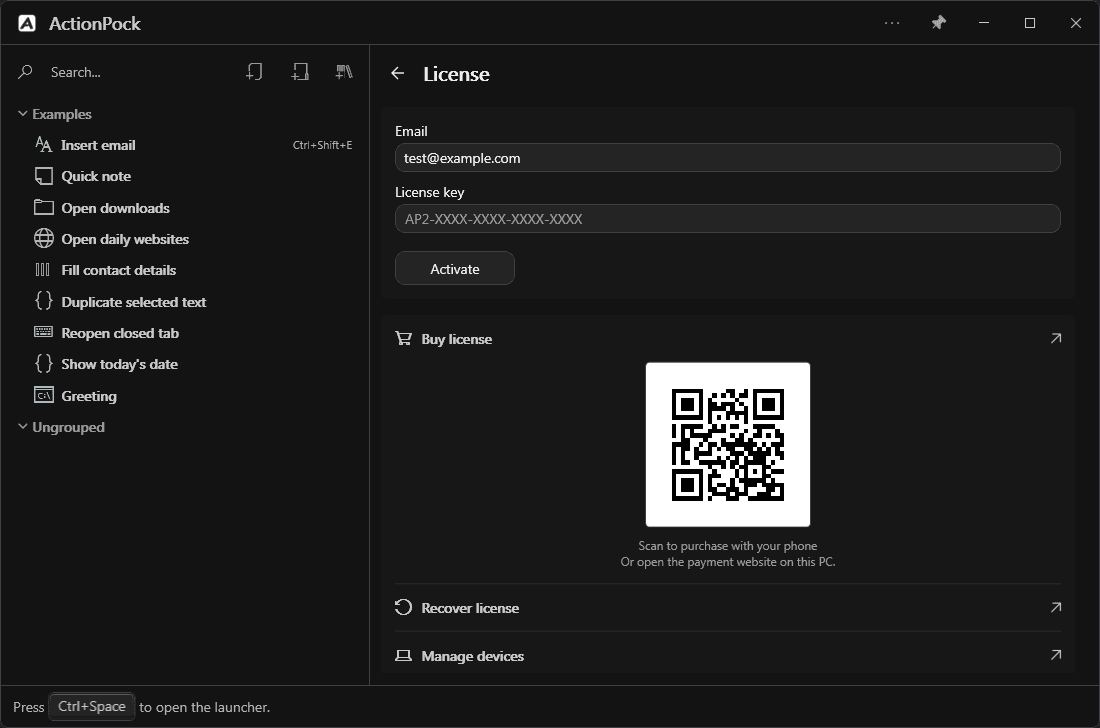
Activate a license
- Download and try ActionPock free for 30 days — or go straight to buying a license (Stripe).
- Your
AP-key arrives by email after payment is confirmed. - In ActionPock, open the title-bar menu → License.
- Enter the purchase email and the key from your email.
Licenses cover ActionPock, including updates for your term. Choose 3 or 10 PCs and 1 month, 6 months, 1 year, or Forever. Forever is perpetual; timed plans return to Free when they end. The free trial runs 30 days; after that, Free keeps a limited number of top-level items for editing, and running may be limited or require an active paid license.
Manage devices
Personal allows up to 3 active PCs and Power User up to 10. Remove a device in the app's License page or on Manage license to free a slot for another machine. The portal verifies your email with a 6-digit code — no password account exists.
Forgot your key?
Use Recover license. After the email code check, a replacement key is sent and the previous key stops working; your existing device activations are kept.
Everyday shortcuts
In the Launcher:
- Ctrl+Space — open the Launcher (customizable in Settings)
- ↑ / ↓ — move through results
- Enter — run the selected action or workflow (or start parameter prompts)
- Tab — on a parameterized result, begin filling parameters
- Enter / Tab while prompting — accept the current value and continue
- Shift+Enter while prompting — insert a newline in the current value
- Esc — close without running, or step back while prompting
When working in the Action Manager list:
- Ctrl+N — create an action, or a step when a workflow is selected
- F2 — rename the selected item
- Ctrl+D — duplicate the selection
- Ctrl+C / Ctrl+X / Ctrl+V — copy, cut, paste items
- Del — delete the selection
When you are typing in a text field, the usual copy, cut, and paste shortcuts work on the text instead. To quit ActionPock completely, right-click its system tray icon and choose Exit.